Rich Text Editing
NoteCove uses TipTap, a powerful and extensible rich text editor built on ProseMirror.
Editor Features
Text Formatting
Apply rich formatting to your notes:
- Bold, italic, and
strikethrough Inline codefor technical content- Underline for emphasis
- Text colors and highlights (coming soon)
Headings
Organize content with hierarchical headings:
# Heading 1

## Heading 2

### Heading 3
Use keyboard shortcuts for quick access:
Cmd+Alt+1/Ctrl+Alt+1: Heading 1Cmd+Alt+2/Ctrl+Alt+2: Heading 2Cmd+Alt+3/Ctrl+Alt+3: Heading 3
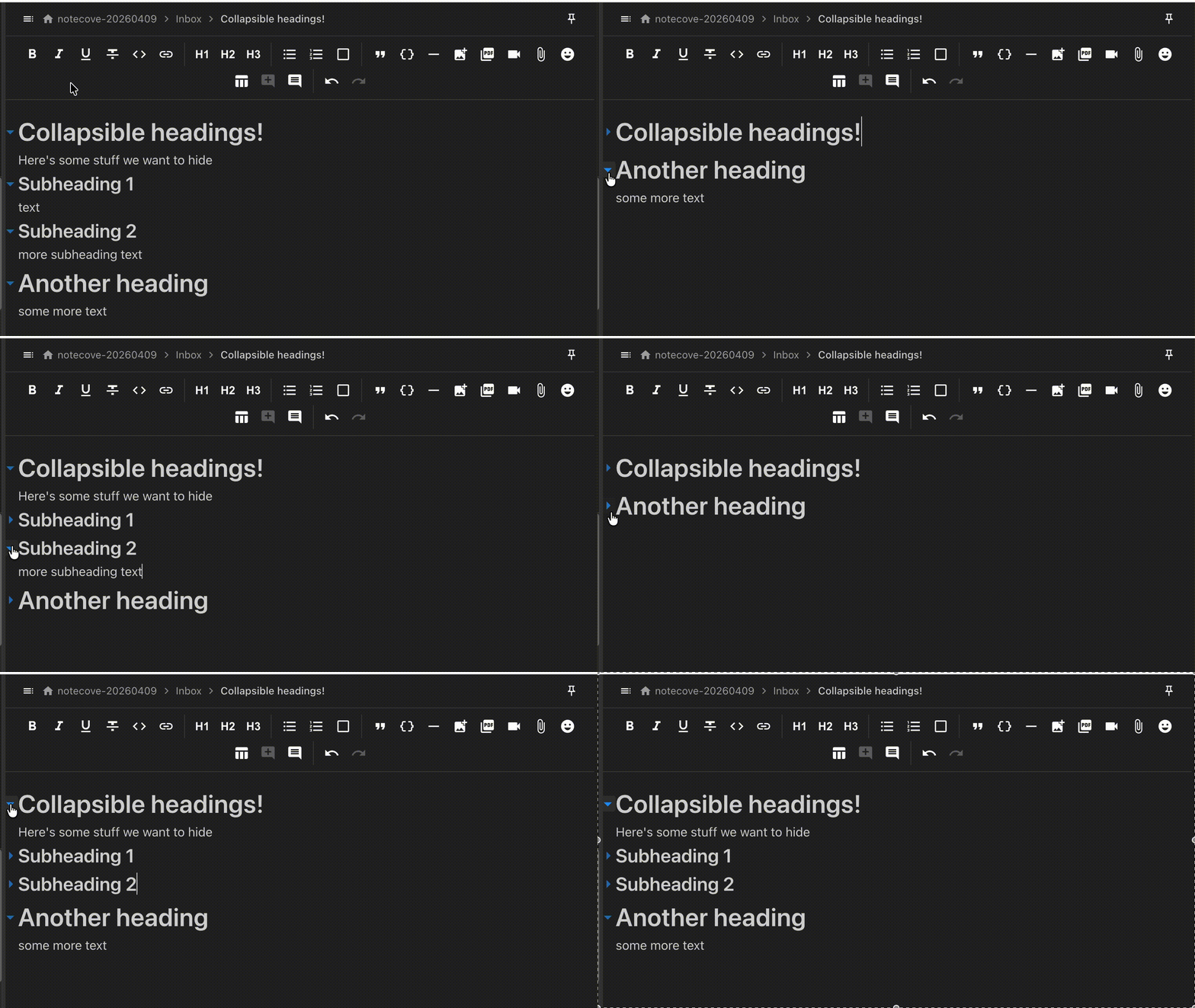
Collapsible Headings:
Each heading has a toggle button that lets you collapse or expand the content under it. Collapsed sections hide all content from the heading until the next heading of the same or higher level.
- Click the ▼/▶ toggle next to any heading to collapse or expand
Cmd+./Ctrl+.: Toggle collapse on heading at cursorCmd+Shift+./Ctrl+Shift+.: Collapse or expand all headings
Collapsed state is saved with your note and syncs across devices. When exporting or printing, all content is included regardless of collapse state.
Lists
Create structured lists:
Bullet Lists:
- Item one
- Item two
- Nested item
- Another nested item
Numbered Lists:
- First item
- Second item
- Nested numbered item
- Another nested item
Task Lists:
- Todo item
- Completed item
- Another todo
Code Blocks
Syntax-highlighted code blocks for technical notes:
function greet(name) {
  console.log(`Hello, ${name}!`);
}
def greet(name):
print(f"Hello, {name}!")Supported languages include JavaScript, Python, TypeScript, Java, C++, Go, Rust, and many more.
Blockquotes
Emphasize important content:
This is a blockquote. It can span multiple lines.
Horizontal Rules
Separate sections with horizontal rules:
Tables
Create structured data tables:
| Column 1 | Column 2 | Column 3 |
|---|---|---|
| Data 1 | Data 2 | Data 3 |
| Data 4 | Data 5 | Data 6 |
Table Features:
- Insert from toolbar: Click the table button to create a new table
- Header rows: Toggle header styling for the first row
- Column resizing: Drag column borders to adjust width
- Cell alignment: Left, center, or right align content
- Keyboard navigation: Use Tab to move between cells
- Add/remove rows and columns: Right-click for context menu
Keyboard Shortcuts:
Tab: Move to next cellShift+Tab: Move to previous cellEnter: Add new row (when in last cell)
Images
Add images to enhance your notes:
Adding Images:
- Drag and drop: Drop image files directly into the editor
- Paste from clipboard: Paste screenshots or copied images
- Insert from toolbar: Click the image button to browse files
Image Features:
- Automatic thumbnails: Images are optimized for fast loading
- Lightbox view: Click any image to view full-size in a lightbox
- Resize: Drag image corners to resize
- Alt text: Add descriptions for accessibility
Supported Formats:
- PNG, JPEG, GIF, WebP
- Images are stored locally alongside your notes
File Attachments
Embed files directly in your notes:
- Videos: MP4, WebM, MOV — plays inline with native video controls
- PDFs: Embedded with a viewer for quick reference
- Other files: Any file type can be attached and downloaded later
Adding Attachments:
- Drag and drop files into the editor
- Paste from clipboard
- Use the attach button in the toolbar
All attachments are stored locally in your storage directory alongside your notes and sync across devices.
Markdown Support
NoteCove supports markdown-style shortcuts for fast typing:
| Type | Get |
|---|---|
# | Heading 1 |
## | Heading 2 |
### | Heading 3 |
* or - | Bullet list |
1. | Numbered list |
[] | Task list |
` | Inline code |
``` | Code block |
> | Blockquote |
Markdown Formatting
Apply formatting while typing:
**bold**→ bold*italic*→ italic`code`→code~~strikethrough~~→strikethrough
Toolbar
The formatting toolbar provides quick access to common operations:
- Text formatting: Bold, italic, underline, strikethrough, code
- Paragraph styles: Headings, paragraph, code block
- Lists: Bullet, numbered, task lists
- Insert: Links, images, tables
Keyboard Shortcuts
See the complete keyboard shortcuts reference for all editing shortcuts.
Advanced Features
Spellcheck
NoteCove highlights misspelled words with red underlines and shows spelling suggestions in the right-click context menu.
Desktop:
- Red squigglies appear under misspelled words
- Right-click a misspelled word to see suggested corrections
- Click a suggestion to replace the word
- Add to Dictionary — right-click a misspelled word and choose “Add to Dictionary” to permanently add it so it’s never flagged again
- Ignore Word — right-click and choose “Ignore Word” to suppress the squiggle for the current session only (resets on next launch)
- Manage your dictionary — view and remove custom words in Settings → Appearance → Custom Dictionary
- Toggle spellcheck on/off in Settings → Appearance → Spellcheck
iOS:
- Spellcheck underlines are shown by the system
- Use the iOS keyboard’s built-in suggestion bar for corrections
- Toggle spellcheck on/off in Settings → Appearance → Spellcheck
Smart Paste
NoteCove intelligently handles pasted content:
- Rich text: Preserves formatting from other apps
- Code: Auto-detects code blocks
- URLs: Auto-converts to links
- Images: Embeds inline automatically
Math Expressions
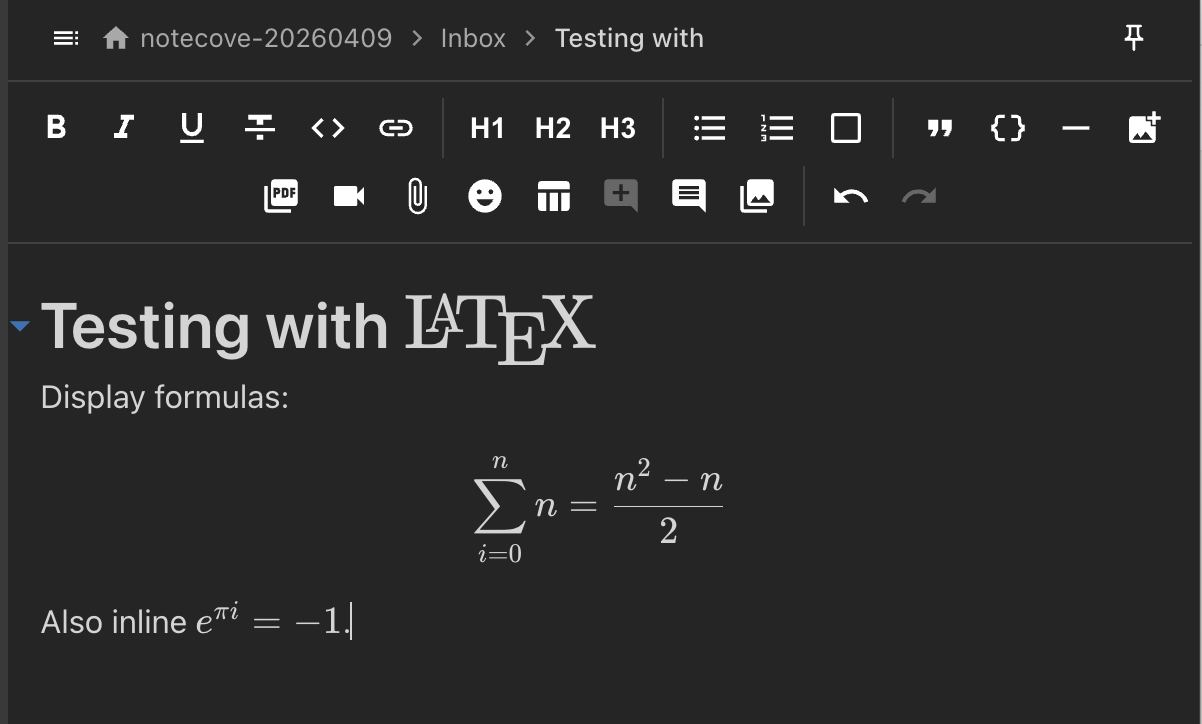
NoteCove renders LaTeX math markup using KaTeX.
Supported on: Desktop, iOS
Inline math — wrap LaTeX with single dollar signs, rendered inline within text:
The quadratic formula is $x = \frac{-b \pm \sqrt{b^2 - 4ac}}{2a}$.Display math — wrap LaTeX with double dollar signs, rendered as a centered block:
$$\sum_{i=1}^{n} i = \frac{n(n+1)}{2}$$Click on any rendered math expression to edit the LaTeX source. Markdown pasted with $...$ or $$...$$ delimiters is automatically converted to math nodes.
Link Chips
Links in the editor are rendered as compact, interactive chips:
- Folder links — navigate to notes in your folder hierarchy
- Task links — reference tasks with live state updates
- Date chips — link to dates with native date picker integration
These chips display as styled, clickable elements rather than plain underlined text, providing visual distinction and quick access.
Outline TOC Panel
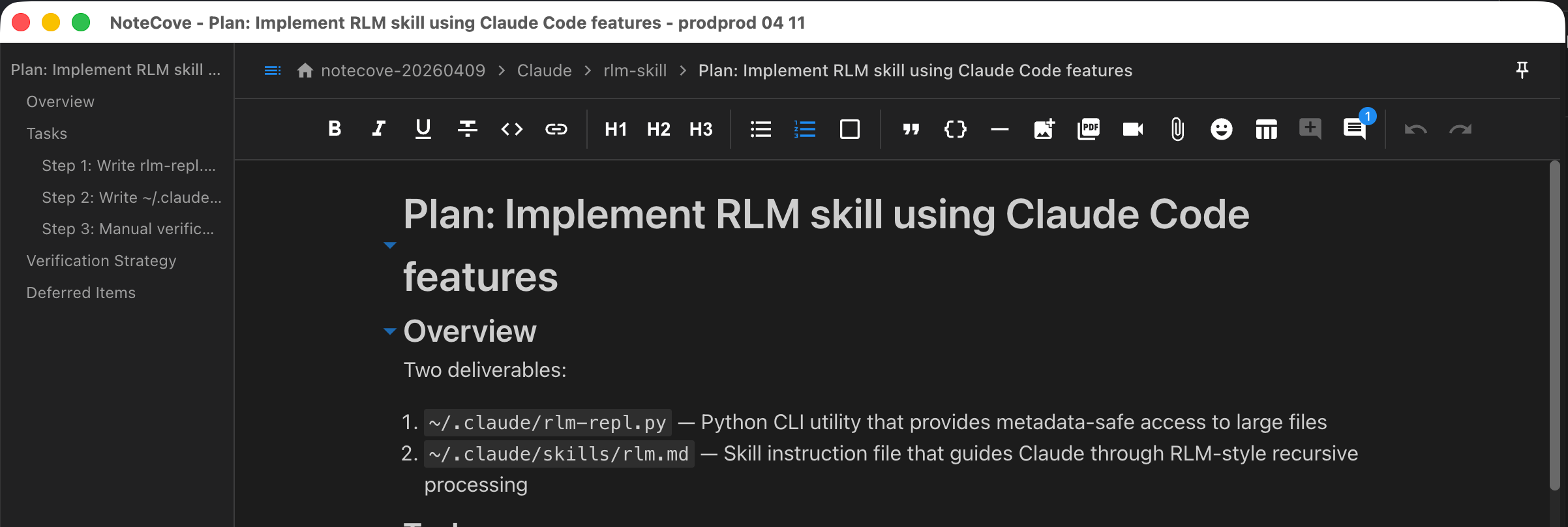
NoteCove includes an auto-generated table of contents panel that shows document headings in a collapsible sidebar:
- Toggle visibility — use the toolbar button or
Cmd/Ctrl+Shift+O - Persist globally — Settings → Appearance → Outline TOC to enable/disable
- Session-only — the toggle button controls visibility independently of the global setting
- Syncs across windows — outline state follows your active note
CRDT-Powered Editing
NoteCove’s editor is built on CRDTs (Conflict-free Replicated Data Types):
- Real-time sync: Changes appear instantly in other windows
- Conflict-free: Multiple people can edit simultaneously
- Offline-capable: Edits sync when connection is restored
- Guaranteed convergence: All devices reach the same state
Learn more about offline sync.
Outline Panel
The outline panel shows a clickable table of contents derived from your note’s headings, pinned to the left of the editor.
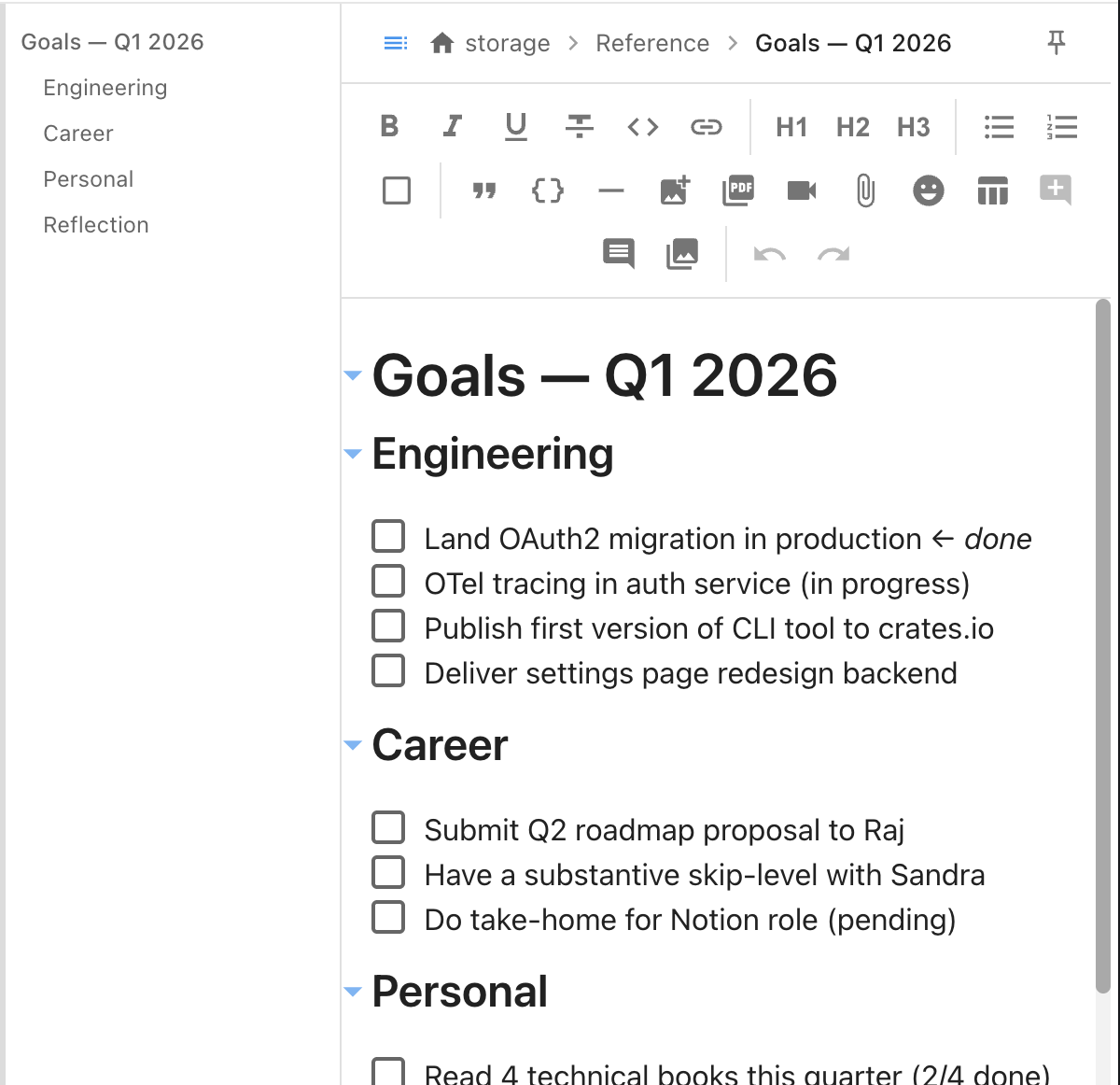
Toggling the outline
- Keyboard shortcut:
Cmd+Shift+O/Ctrl+Shift+O - Menu: View → Outline
- Default: configurable in Settings → Appearance → Show outline panel by default
The panel only appears when the editor window is wide enough to accommodate it alongside the note content.
Navigation
Headings are displayed with visual indentation by level:
- H1 — flush left
- H2 — indented once
- H3 and deeper — indented further
Click any heading to scroll directly to that section of the note.